Cybercriminals are currently using WhatsApp to distribute highly effective malware disguised as urgent financial documents. By preying on our natural panic regarding unexpected charges, scammers are tricking users into downloading dangerous viruses onto their computers and smartphones.
The Rise of the WhatsApp "E-Invoice" ZIP Scam: How to Protect Yourself
Have you recently received an unexpected "E-Invoice" file on WhatsApp? If it is packaged as a .zip file, do not open it. Cybercriminals are currently using WhatsApp to distribute highly effective malware disguised as urgent financial documents. By preying on natural panic regarding unexpected charges, scammers trick users into downloading dangerous viruses onto their computers and smartphones.
Here is exactly how the scam works, the red flags to watch out for, and what to do if you or a friend accidentally opened the file.
How the Scam Works: The Psychology of the "Fake Invoice"
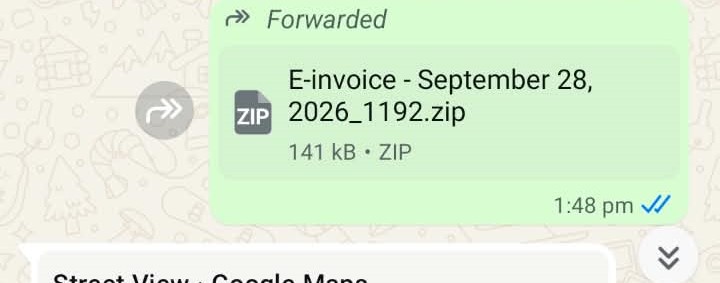
Scammers know that if you receive a message saying you owe money, your first instinct is to check what the charge is for. They send a message with a generic file name—such as E-invoice - September 28.zip.
When you download and extract the ZIP file to see what you "purchased," you aren't opening a receipt. Instead, you are unleashing malicious scripts or executable files designed to steal your passwords, bank details, or hijack your accounts.
3 Major Red Flags to Spot the Scam
1. The File Format is a ZIP (.zip): Legitimate companies send invoices as standard PDF files or secure web links. Scammers use ZIP archives to hide malicious programs (like .exe, .vbs, or .js files) so they can bypass basic antivirus scanners.
2. The "Forwarded" Tag: If the file has a "Forwarded" or "Forwarded many times" tag at the top of the message, it is a massive red flag. This indicates the message is being blasted out to thousands of people in a spam campaign, often from a compromised account.
3. Unexpected or Unknown Senders: If you don't recognize the number, or if a friend sends it with zero context or greeting, treat it as highly suspicious.
What Happens if You Clicked It? (Desktop vs. Mobile)
The level of danger depends on the device you used and how far you went. Simply downloading or unzipping the archive rarely triggers the virus—the real danger lies in opening the files inside.
On a Desktop (PC or Mac): High Risk. Computers are the primary target for these attacks. If you extracted the ZIP folder and double-clicked the "invoice" file inside, the malware has likely executed. It can silently install keyloggers, steal saved browser passwords, or install ransomware.
On an Android or iPhone: Moderate Risk. Mobile phones can easily extract ZIP files, but they cannot run Windows software. If the ZIP contained a Windows virus (like an .exe file), your phone is safe. However, if the ZIP contained a malicious Android app (an .apk file) and you tapped "Install," your device is compromised.
Damage Control: What to Do If You Opened the File
If you or someone you know fell for the trick and interacted with the files inside the unzipped folder, take these steps immediately:
For Desktop Users
1. Disconnect from the Internet: Turn off your Wi-Fi or unplug your Ethernet cable immediately. This stops the malware from sending your stolen data back to the hacker.
2. Run an Offline Scan: Open your antivirus software (such as Windows Defender or Malwarebytes) and run a full, offline system scan to isolate and remove the threat.
3. Change Your Passwords: Use a different, clean device (like your phone) to change the passwords to your email, bank accounts, and password managers.
For Mobile Users
1. Delete the Files: Open your phone's "Files" or "Downloads" app and delete both the original .zip file and the unzipped folder.
2. Check for Unknown Apps: Go to your phone's Settings > Apps. Look for any recently installed apps with blank icons or suspicious names (like "Invoice") and uninstall them immediately.
3. Run Play Protect: Open the Google Play Store, tap your profile icon, select "Play Protect," and run a scan.
How to Stay Safe on WhatsApp
Prevention is always better than a cure. To stop these scams from reaching you in the future:
• Turn off auto-download: Go to WhatsApp Settings > Storage and Data > Media Auto-Download, and turn off automatic downloads for Documents.
• Never trust a ZIP: Treat every .zip or .rar file sent over a messaging app as malicious until proven otherwise.
• Verify with a call: If a friend sends you an unexpected file, call them directly. Their account may have been compromised.